

GBMS Wallet on your phone
3 simple steps
Install the free web app, then sign in with your existing GBMS website account. No account is needed to install. Installing the app does not create an account or include tickets or paid membership.

The app opens on your screen.
iPhone: Share → Add to Home Screen.
Android: choose Install app when offered.
iPhone or iPad · Safari
Illustrative app screen. Browser menus vary.
- Open in Safari
Use the installation button above to open GBMS Wallet in Safari on your iPhone or iPad. - Add to Home Screen
Tap Share → Add to Home Screen. Keep Open as Web App on if offered, then tap Add. - Open and sign in
Tap the new GBMS icon. Sign in with your existing GBMS website account.
Android · Chrome
Illustrative app screen. Browser menus vary.
- Open in Chrome
Use the installation button above to open GBMS Wallet in Chrome on your Android phone. - Install the app
Tap Install if offered, or open Chrome’s menu → Install app. Confirm when prompted. - Open and sign in
Tap the new GBMS icon. Sign in with your existing GBMS website account.
Use the set-password link in your account email if provided, or set or reset your password.
No App Store download is needed. If Android offers only “Add to Home screen” or “Create shortcut”, that alone does not confirm app installation. Menu wording varies by phone and browser version.
Before travelling, open your Wallet online and check that your issued tickets are available on your phone. Keep your current booking instructions available. You do not need to repeat app installation for each card.
Less searching through emails. More looking forward to the show.
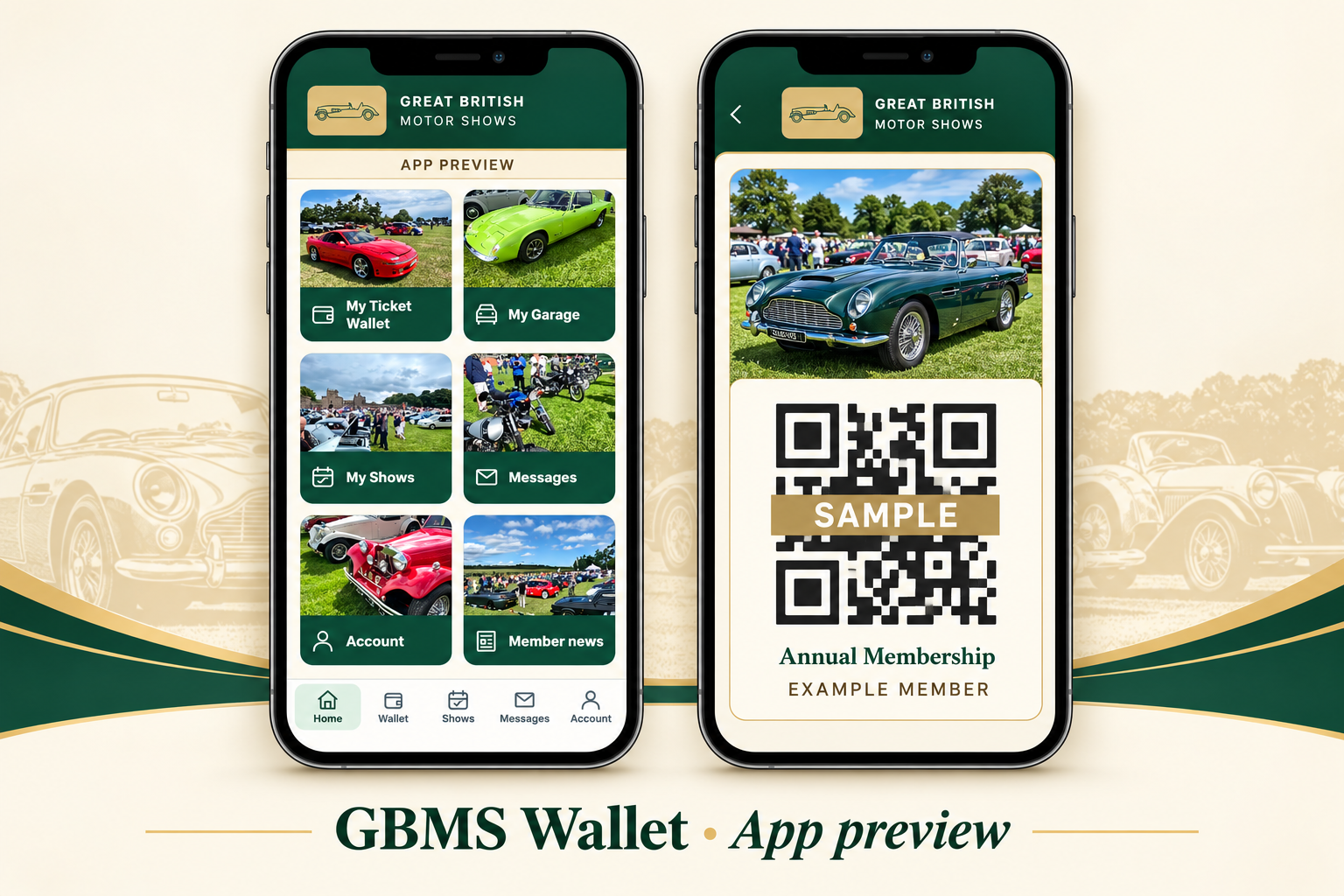
Keep your eligible tickets and membership card ready on your phone, find your shows, enjoy Member news and manage your motoring life through My Garage.
Get ready in three simple steps
Install the GBMS app
Open the install link on your phone. iPhone: Safari → Share → Add to Home Screen. Android: Chrome → Install app when offered.
Your account, on your home screen
Sign in with your booking email
Open the GBMS icon. Sign in with the same email as your booking and your existing password, or use password help. Installing does not create an account.
Prepare before you travel
Open your Wallet
When issued tickets are available, check the show, date, entry type and quantity online before travelling. Follow your booking’s current entry instructions.
Ready even without signal
A familiar place for everything
- Home: photo-led shortcuts to the parts of your account you use most.
- My Ticket Wallet: eligible event tickets and saved membership cards, with the show name and entry details.
- My Shows: your relevant show information and available calendar actions.
- My Garage: now available to existing verified website accounts, including free accounts, to manage their own private vehicles and photographs. The shared gallery remains limited to invited testers. Adding or editing vehicles and uploading photographs requires an internet connection.
- Messages: ticket invitations and transfer activity where enabled.
- Member news: updates and selected partner offers as announced; full stories may open in your browser.
- Your Account: account help, installation information and policy links.
Share the day out—not a screenshot
When ticket transfers are enabled for your booking, an eligible ticket can be invited into another person’s GBMS account. They accept it and save it in their own wallet. That is a clearer handover than forwarding QR screenshots, and it does not create extra entry rights.
See the club and ticket-transfer guide.
Growing with our motoring community
Passkey sign-in, improved reminders and further club tools are planned developments. We will announce features as they become available; dates are not yet confirmed. Cars for sale and additional partner benefits should not be treated as included, live services until announced.
GBMS Wallet questions, answered
What is GBMS Wallet?
A home-screen web app for your GBMS account, saved tickets and membership card, with links to your shows, My Garage and Member news. Public membership subscriptions are now open. Wider ticket transfers are still being introduced in stages; availability will be shown in your account.
Where are my tickets? They are not attached to my email.
Sign in to the GBMS account used for your booking and open My Ticket Wallet. Check each ticket’s event name, date and entry type. An order-confirmation email is not the same as a saved entry ticket. If an eligible paid ticket is missing, contact GBMS with your order reference—do not buy it again just to make it appear.
How do I add the wallet on an iPhone?
Open the GBMS wallet installation page in Safari. Use Share, then Add to Home Screen; turn on Open as Web App if offered, then Add. Open GBMS Wallet from its new icon and sign in. Menu wording varies by iOS version.
How do I add it on Android?
Open the GBMS wallet installation page in Chrome. Tap Install if offered, or open Chrome’s menu and choose Install app, then confirm. Open the new icon and sign in. If the browser offers only Add to Home screen or Create shortcut, that alone does not confirm app installation. Menu wording varies by phone and browser version.
Will my tickets work without a phone signal?
Tickets and membership cards already saved on that phone can be displayed without a signal. While connected before travelling, open the wallet, refresh it and check that every required card opens. Installing the app alone does not prove that your tickets have been saved. Keep your phone charged. Entry remains subject to the ticket’s current validity and the show’s checks.
What still needs a connection?
Signing in, receiving new tickets, refreshing status, transferring tickets, accepting invitations, changing show selections, editing My Garage and loading fresh news need mobile data or Wi-Fi. If you have no signal, try those actions again once connected.
Can I use a screenshot of the QR code?
Open the actual ticket or membership card in GBMS Wallet for entry, rather than a screenshot. A screenshot cannot reflect later transfers, cancellations or status changes. Never post your QR code publicly.
Can I transfer a ticket to another member?
Where a ticket is eligible and the transfer feature is enabled, select that individual ticket and send an invitation to the recipient’s GBMS account email. The recipient must accept it into their own account and save it on their phone. Check the transfer status before travelling; sending an invitation is not the same as an accepted transfer. Public rollout is pending final validation.
Does transferring a ticket create another copy?
No extra admission is created. After an accepted transfer, the sender’s old entitlement must no longer be used. The recipient uses the ticket accepted into their own wallet. Follow the event’s eligibility rules; membership cards are not advertised as transferable.
Does the recipient need a paid GBMS membership?
A GBMS website account and a paid annual membership are different things. The recipient needs an eligible account and must meet the rules shown for that ticket. Do not purchase a membership merely to accept a ticket unless its stated conditions require it.
What if I bought several tickets?
Check the entry description and quantities shown with each ticket. Do not assume one QR covers your whole party. Where tickets are separate, open each required ticket; transfer only the specific ticket intended for its recipient.
Can I see my membership card here?
An eligible active membership can have a card saved in the wallet. Open the card to see its QR and membership details. Dual membership provides two named, non-transferable cards; follow the holder-setup instructions supplied with your subscription. Each card is for its named holder, not a transferable guest pass. Renewals and new purchases require a connection before the saved details can update. Public recurring membership subscriptions are available at Join & Membership.
Where are my shows, news and partner offers?
My Shows helps you find show details associated with your eligible tickets and membership selections. Member news brings updates together; full articles may open in your browser. Partner offers will show their own eligibility, redemption instructions and expiry. Fresh information needs a connection.
Is My Garage public?
Vehicles start private. Share only the approved photographs you choose through the available sharing controls. Account and insurance details are not intended for the shared gallery. See the privacy information in Your Account before uploading.
Do I need to refresh or reinstall the app?
Open the app while connected so it can check for updates and refresh eligible records. Use Check for updates if an expected update has not appeared. Do not delete the app or clear its data just to update it; that can remove saved cards.
What happens if I log out or change phones?
The current Log out & remove saved wallet action removes saved cards from that device. On a new phone, sign in and save your eligible cards again while connected. A phone’s screen lock is useful, but it does not replace account sign-in or ticket validation.
Are Face ID and automatic phone reminders available?
Dedicated passkey/biometric sign-in and background reminders are planned improvements, not promised current features. Do not rely on a phone alert or a twice-daily background refresh; open the wallet and check before travelling.
What if I cannot use a smartphone?
Contact GBMS before the show to discuss available arrangements. Do not wait until you are at the entrance with no accessible ticket. Alternative arrangements must be confirmed by the team.
Go to Your Account · Explore shows · Compare annual memberships





 Image: CORGI